This fact sheet is for Administrators of a SignPlanet.net Site License and explains the use and set up of Profile logins
What is a Profile user
This feature is a user who can login with a QR code (ie no user name or password), OR through your Organisation page with a user name and password. No email address is attached to a profile. This is perfect for students and children for example.
What is a Profile Group
An Organisation has unlimited GROUPS is can create (eg a school within the state license, or class within a school license, or department within a company). You can appoint an “account” holder as a manager of a group by adding them into that group.
This will automatically assign them within your Manager section.
You do not have to set up Groups first, however it will make it easier to manage a large number of profiles
On this pageHow to set up a profile
- How to search and edit a profile
- Profile login via organisational web page
- Profile login via QR Code
________________________________________________________________________
How to set up a profile
Within your MY Organisation admin portal go to PROFILES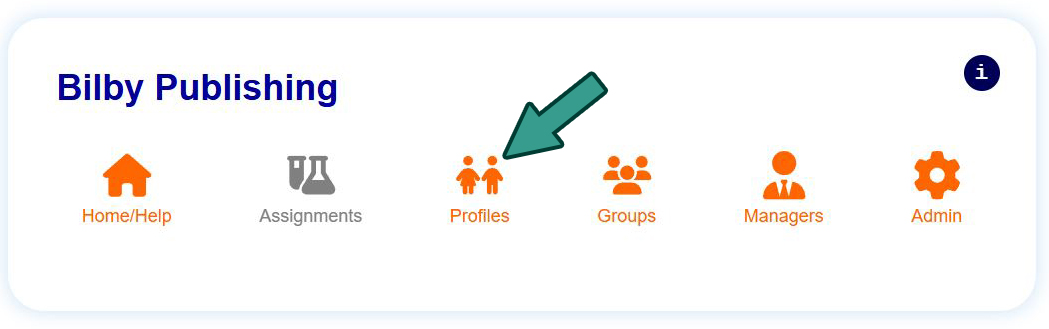
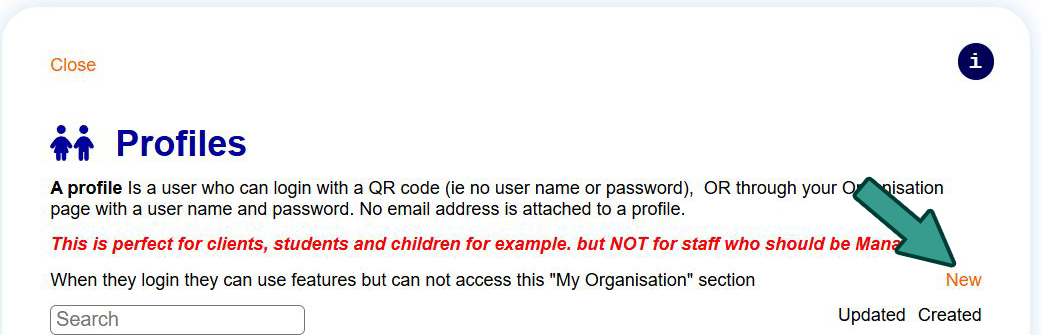
Click NEW to make a new profile
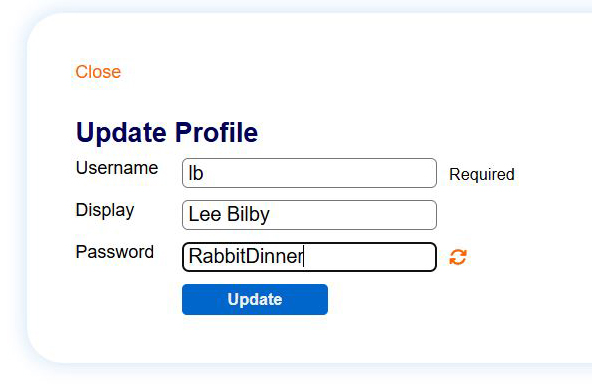
Username should be easy for the student to type/remember
Display name - usually their full name
Password is auto generated but you can change it to anything you want
________________________________________________________________________
How to search and edit a profile
Search name or click the profile in list
The click Edit next to their name under Bulk Action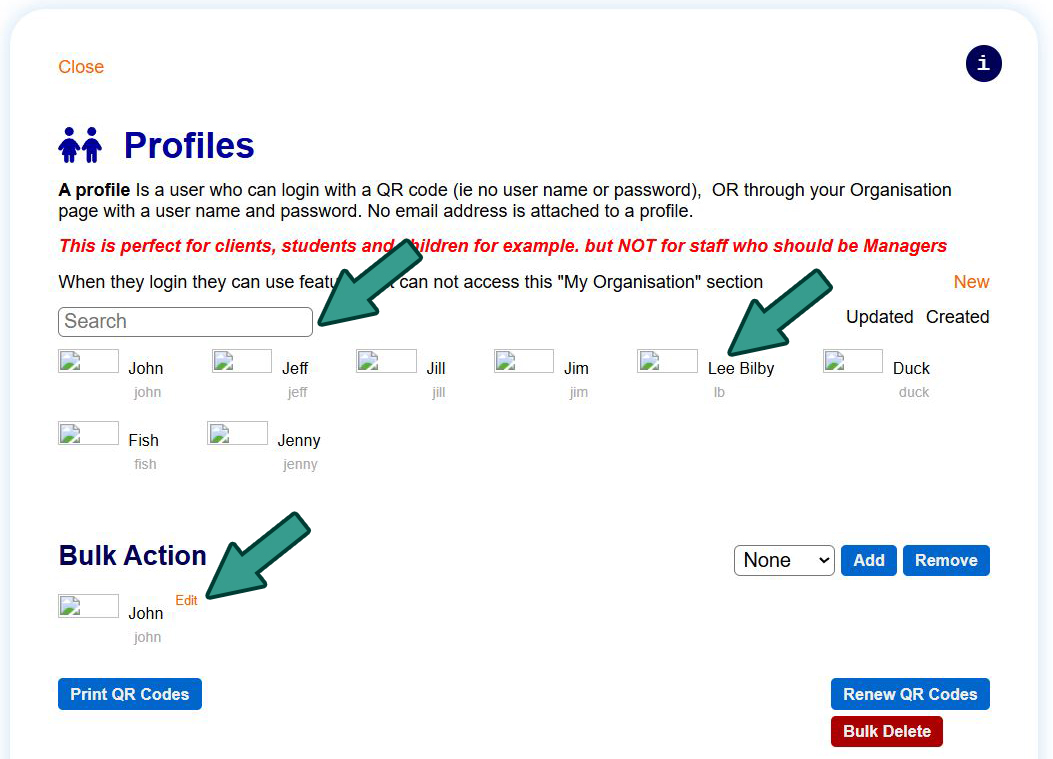
________________________________________________________________________
Profiles login via your organisations login webpage
1. DIRECT LINK: you can set this up on your intranet This is possibly the easiest for student self managed login
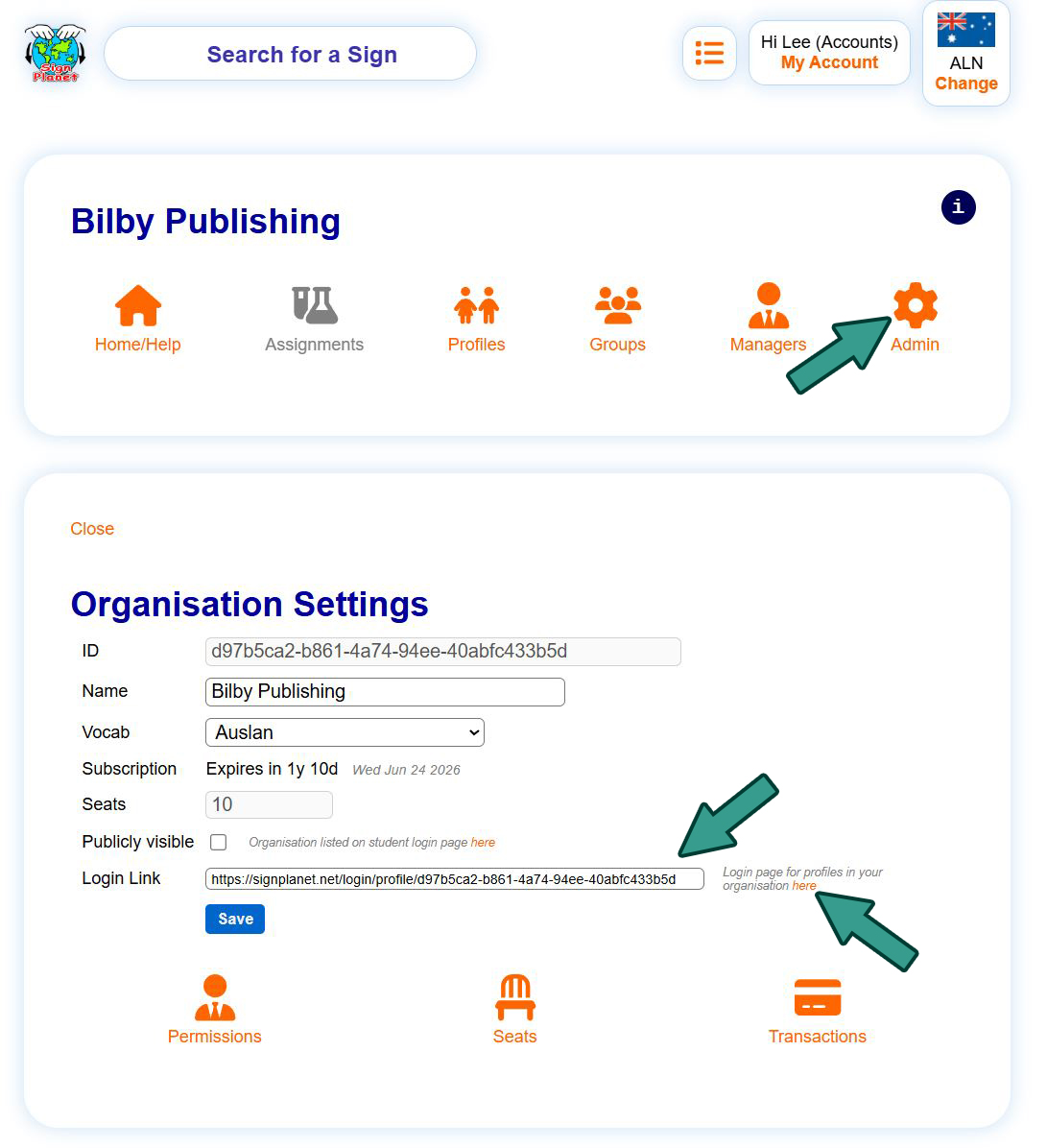 You can copy link from here
OR
2. Self navigation to LOGIN PAGE
Students open SignPlanet.net, click login - student/profile
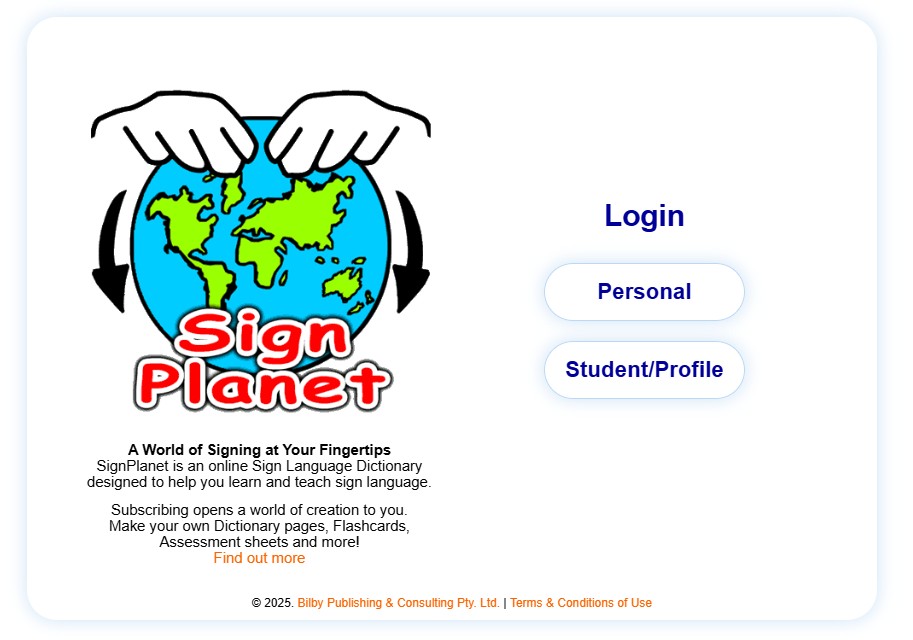
Then find your organisation in drop down*
Then type in their Username and Password
Your organisation only appears if you TICK that box in admin screen here (and hit save)
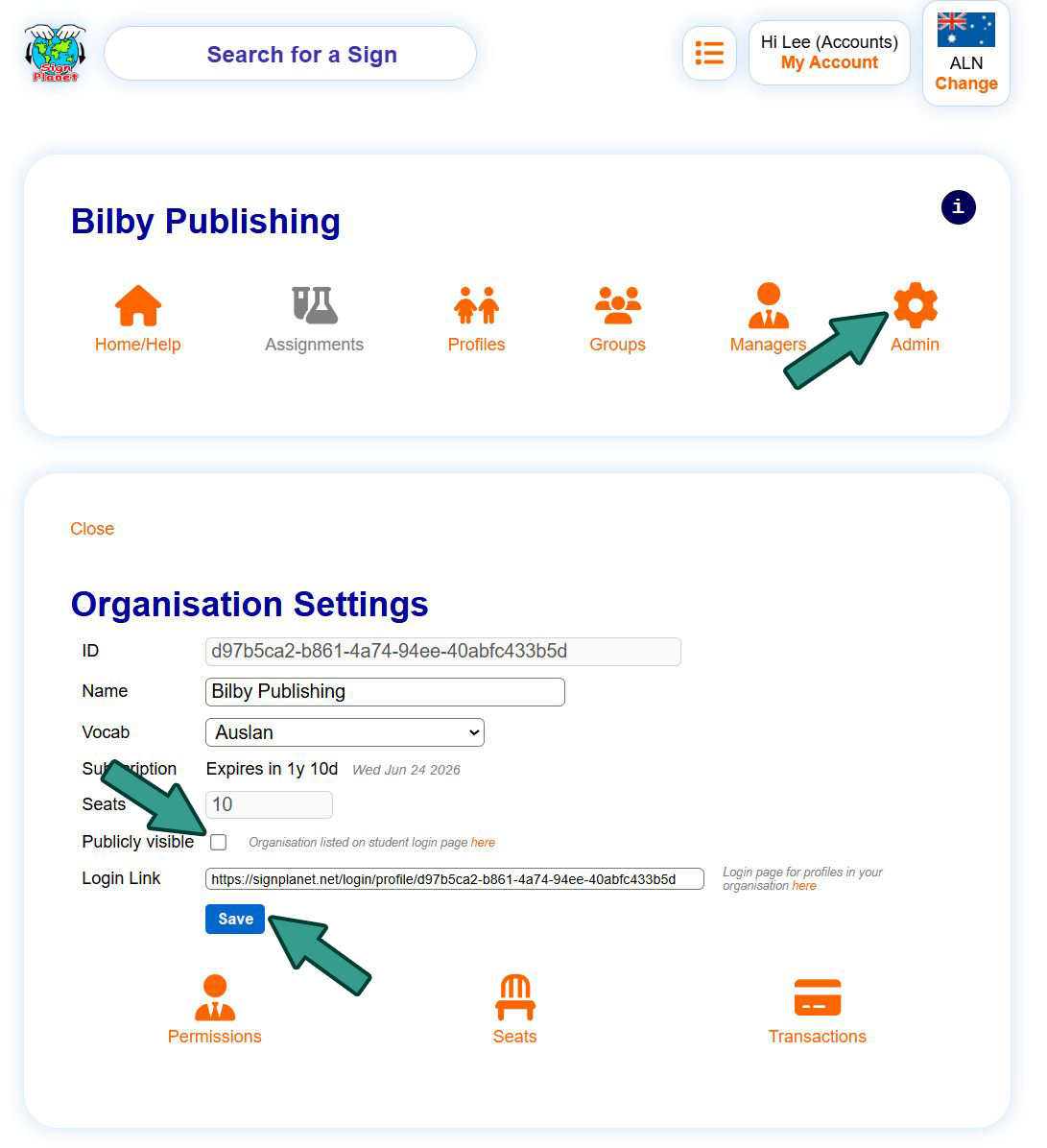
FOR BOTH
Using example above we entered username "lb" and "RabbitDinner" as password off the Bilby Publishing Organisation Login Page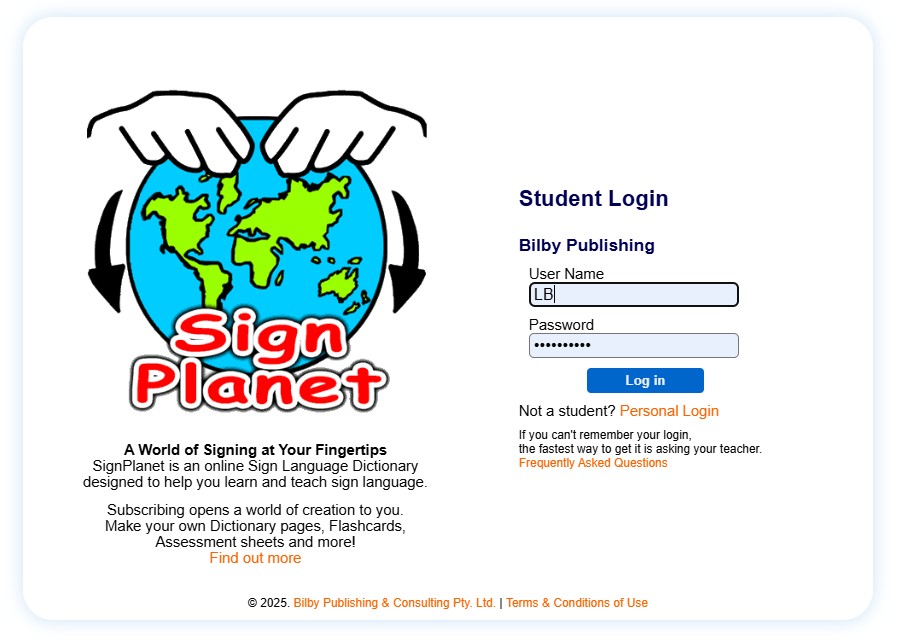
________________________________________________________________________
Profiles login via QR Code
(on a tablet for example)
From either the PROFILE or GROUP admin page Print QR Codes
Then scan code on tablet or phone etc, you should be auto logged in to that profile.
If at first you appear not logged in hit refresh. Some browsers are being annoying and on refresh show u are logged in
Was this article helpful?
That’s Great!
Thank you for your feedback
Sorry! We couldn't be helpful
Thank you for your feedback
Feedback sent
We appreciate your effort and will try to fix the article